Upload Photos – Add Images to Your Albums
Upload Photos to Album
Select the album you need upload photos
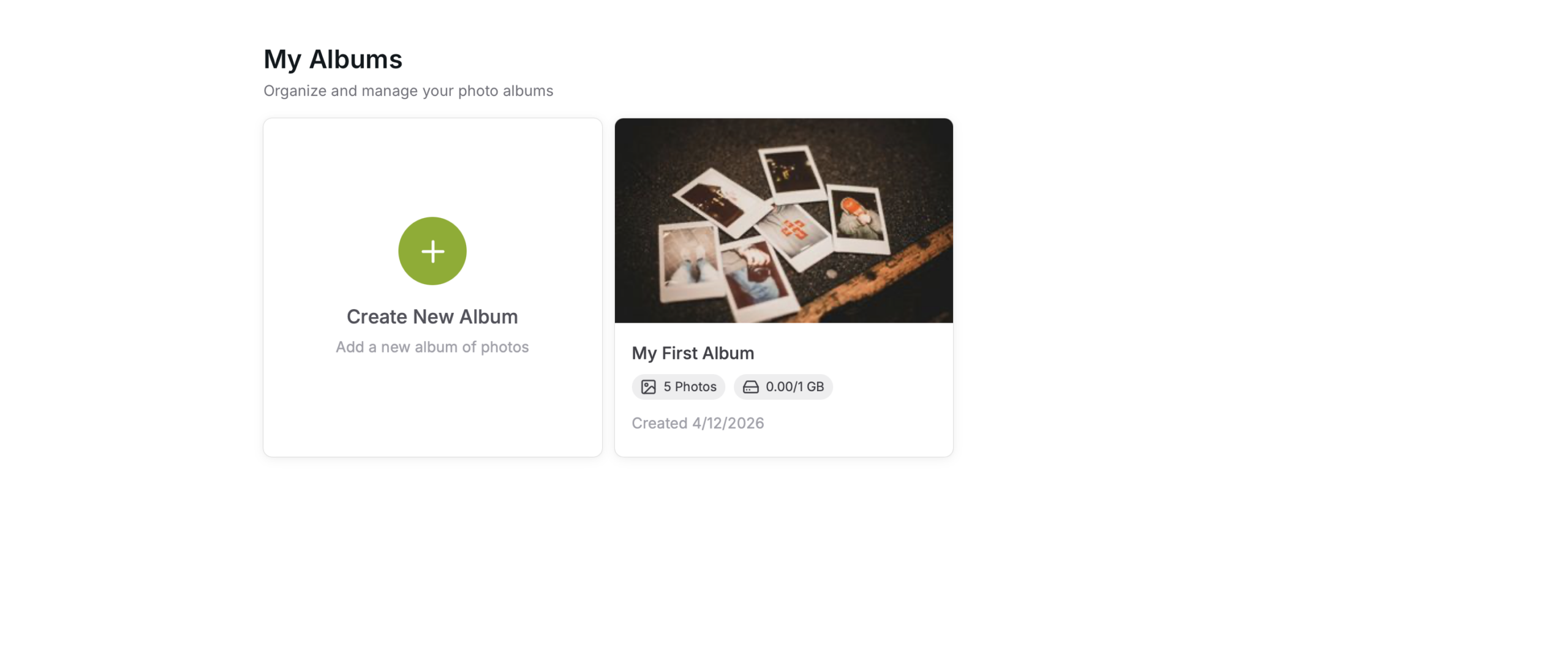
Gallery Tab
Select the “Gallery” tab
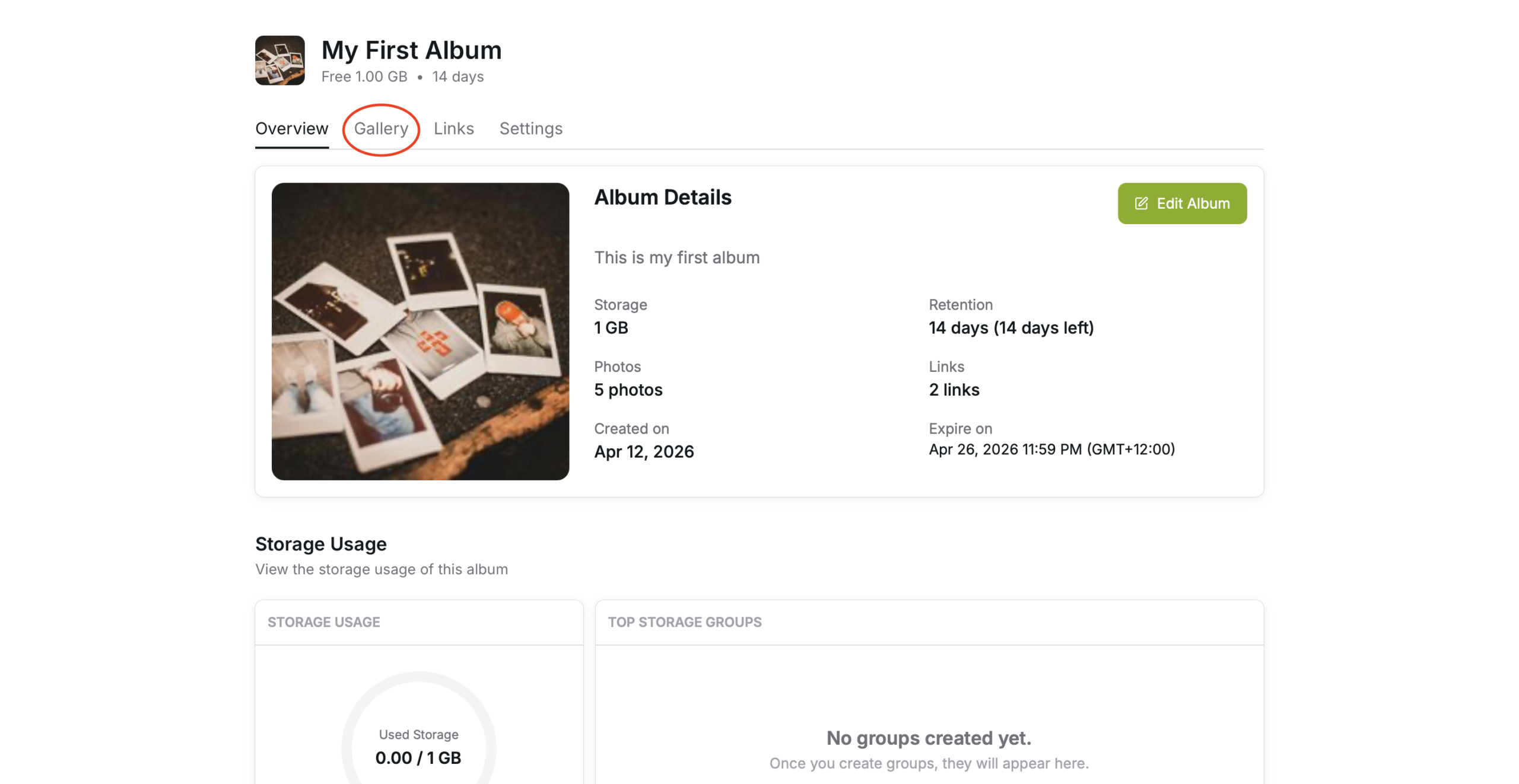
First Upload
When Uploading images to an album for the first time, Press the upload button in the middle

Afterwards use the upload button on the right hand side
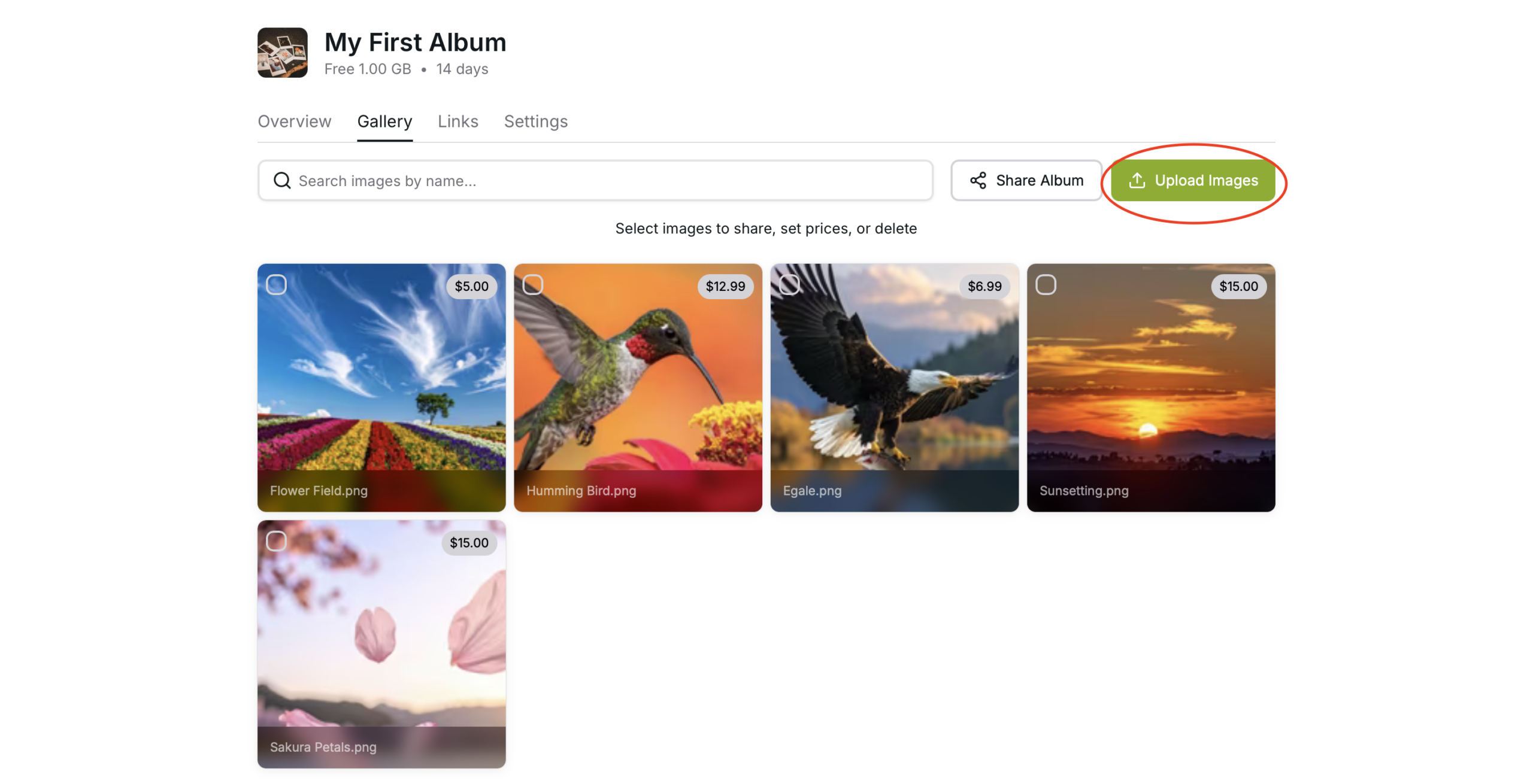
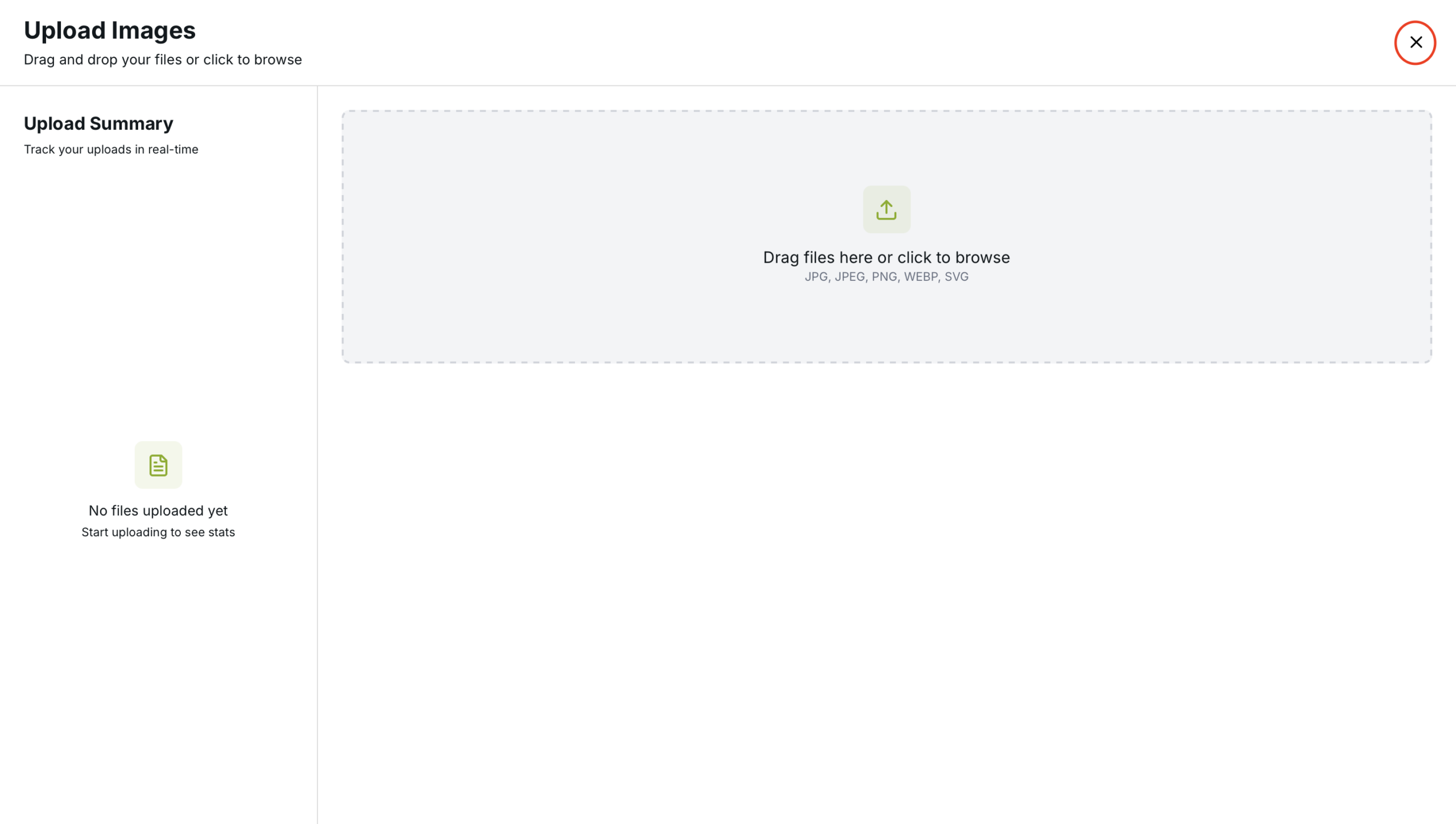
Select Photos
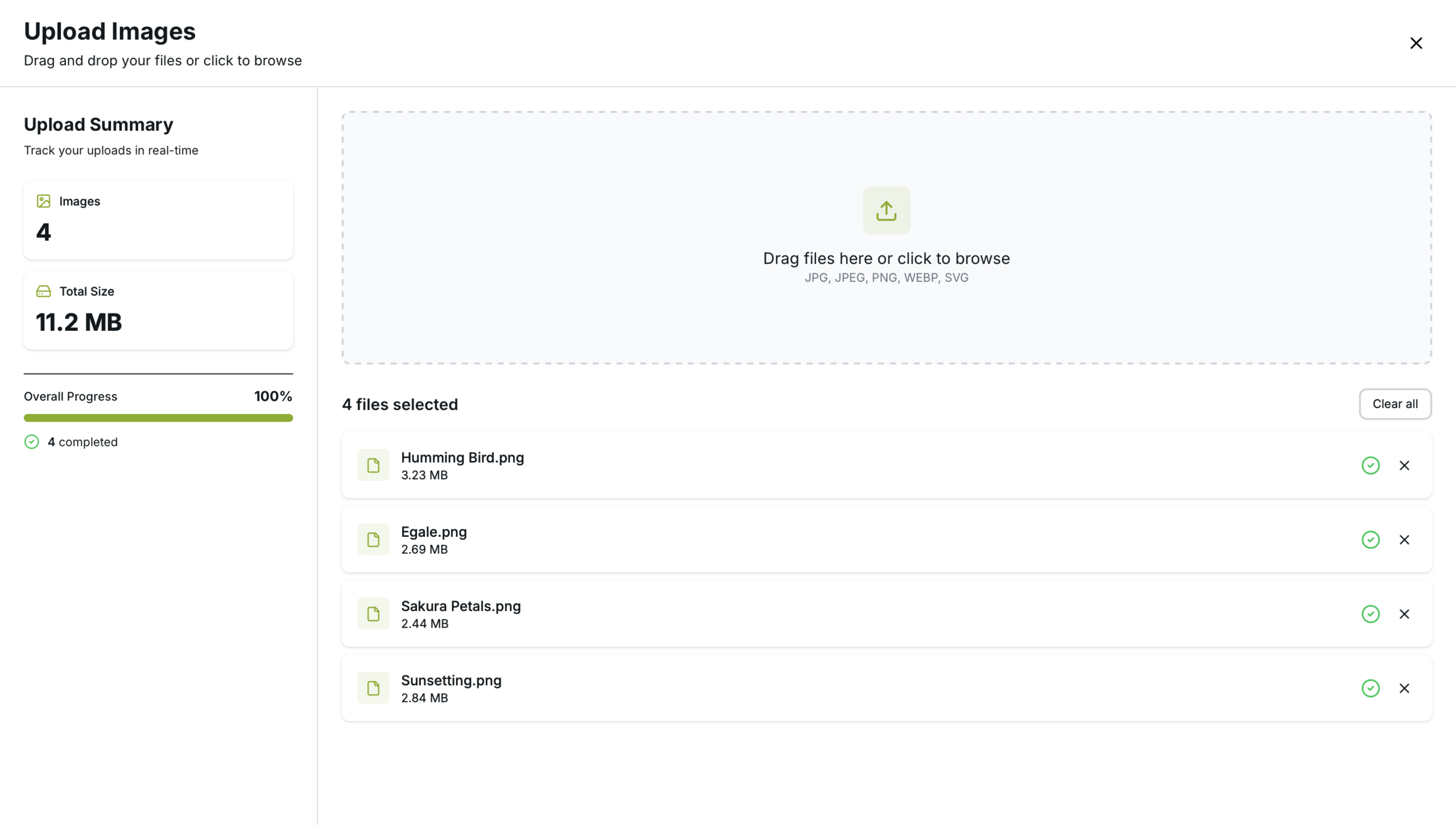
Select and upload photos. You can also drag and drop the photos you need to upload
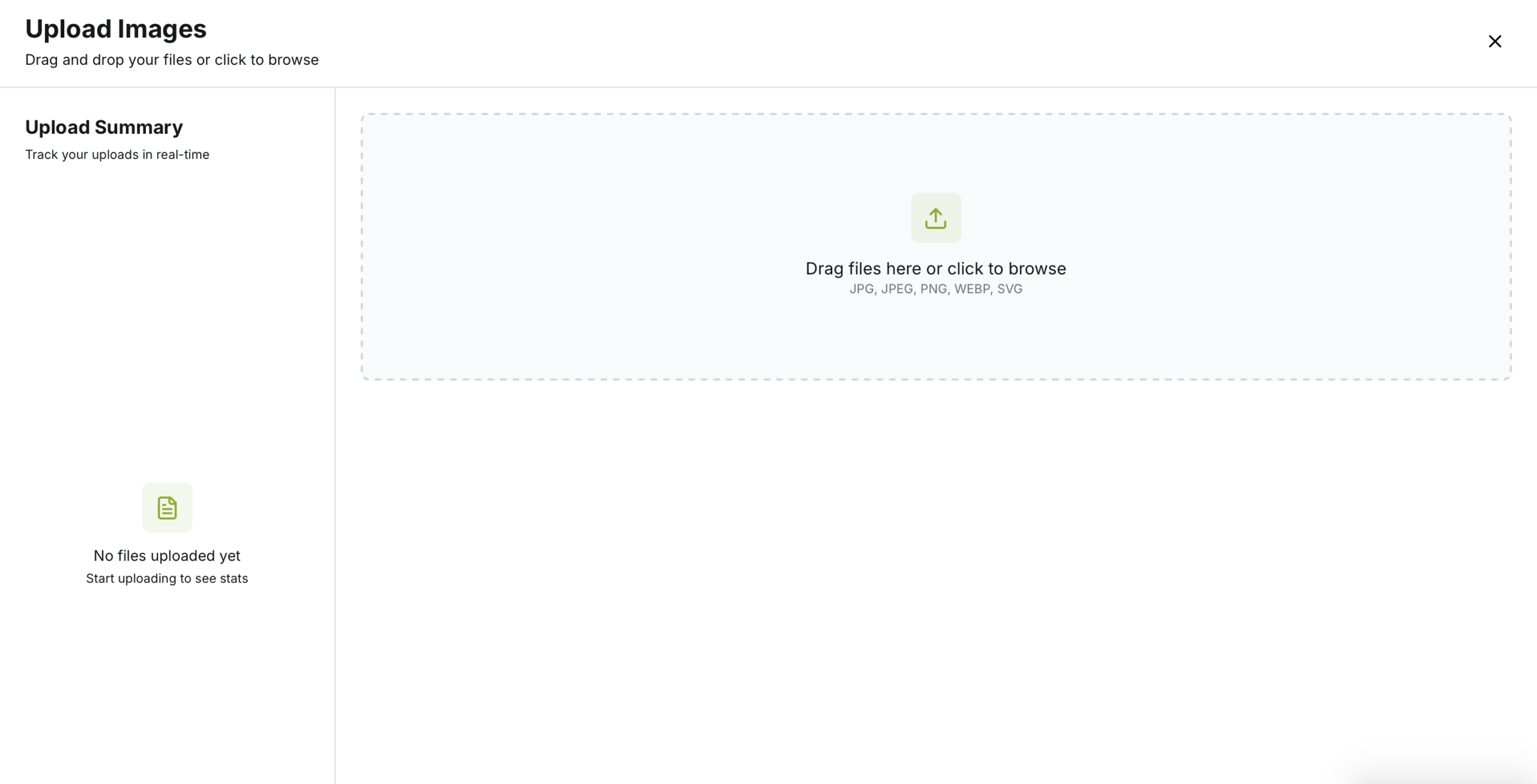
Upload
When added or dragged and dropped, the photos will automatically start to upload
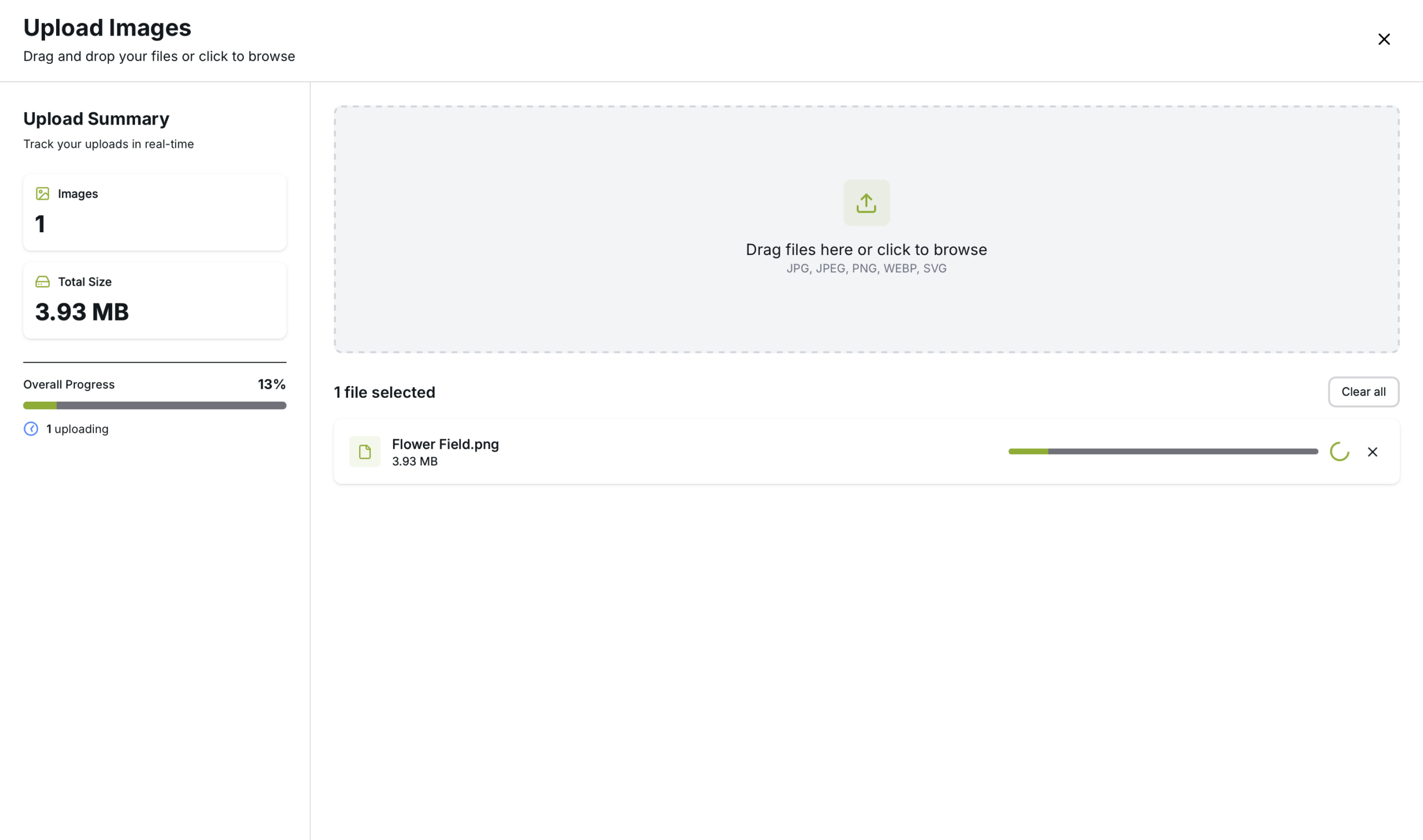
You can remove any images from the list if you do not wish to upload it, using the “X” in the right corner of the file.
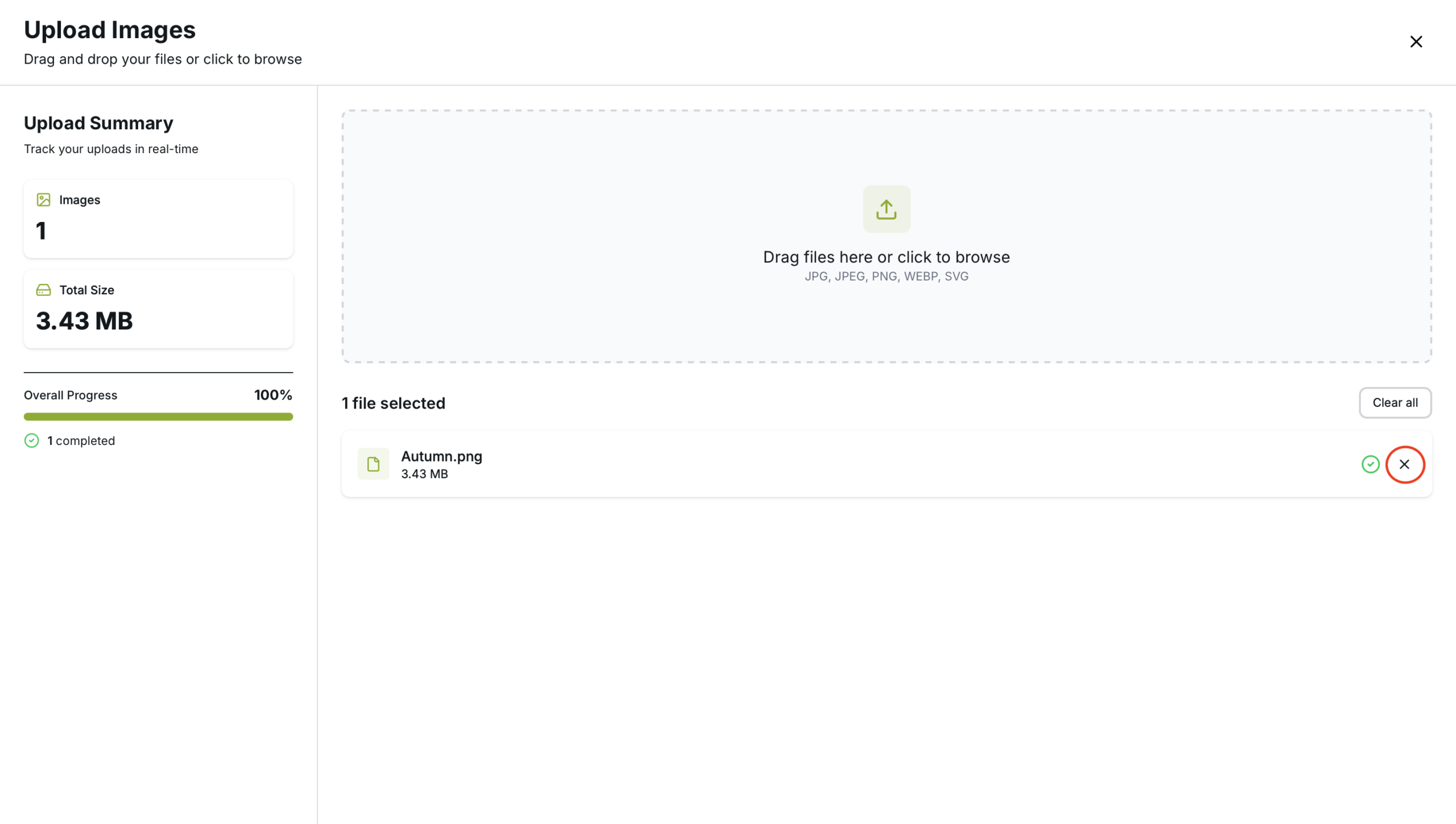
Uploading happens in parallel, therefore do not upload more than 10 photos at once. This number is relative to your internet speed.
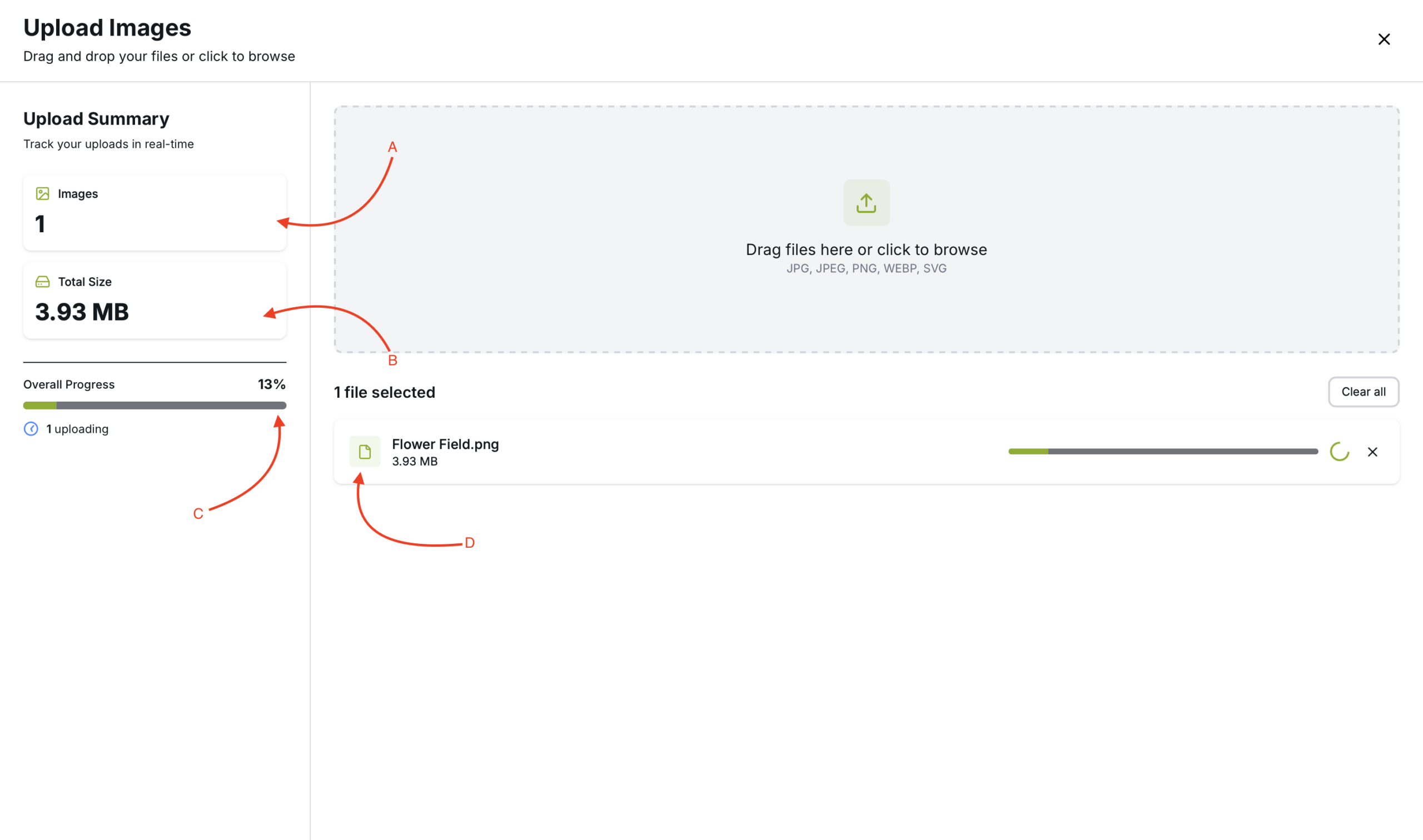
A – This shows the number of images that it being uploaded
B – This shows the amount of storage the uploading images are going to take up
C – This shows the uploading Progress
D – This shows the files that are being uploaded with their file name, file type and the storage
After uploading is completed use the “X” on the top right hand corner to get back to the Gallery
After uploading it might to take a little bit of time for the image preview to appear
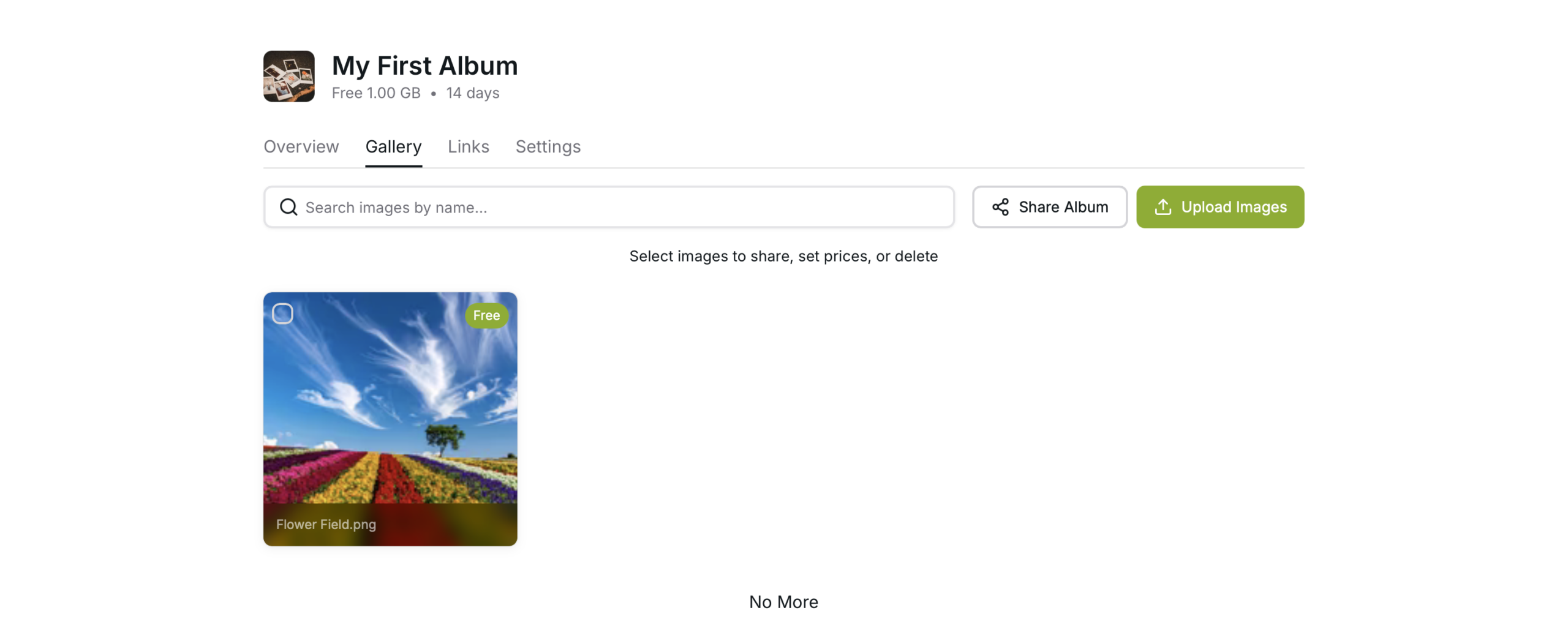
Upload More
Use the upload button to upload more images.